
Getting started
HotkeyPilot needs Blender 4.2 or later, on Windows, Linux or macOS.
Install
Section titled “Install”- Download
hotkeypilot-1.0.0.zipfrom Superhive. Keep it zipped. - In Blender, open Edit > Preferences > Get Extensions.
- Click the arrow at the top right and choose Install from Disk.
- Pick the zip. HotkeyPilot is on as soon as it is installed.
To update, install the new zip the same way. Your counts stay.
Your first note
Section titled “Your first note”- In Blender’s new file, open the Add menu in the 3D Viewport header and click Mesh > UV Sphere. A note shows in the bottom right corner: UV Sphere: Shift A > Mesh > UV Sphere.
- Hold Shift and click the Cube, so both are selected.
- Open the Object menu and click Join. The note now reads Join: Ctrl J.
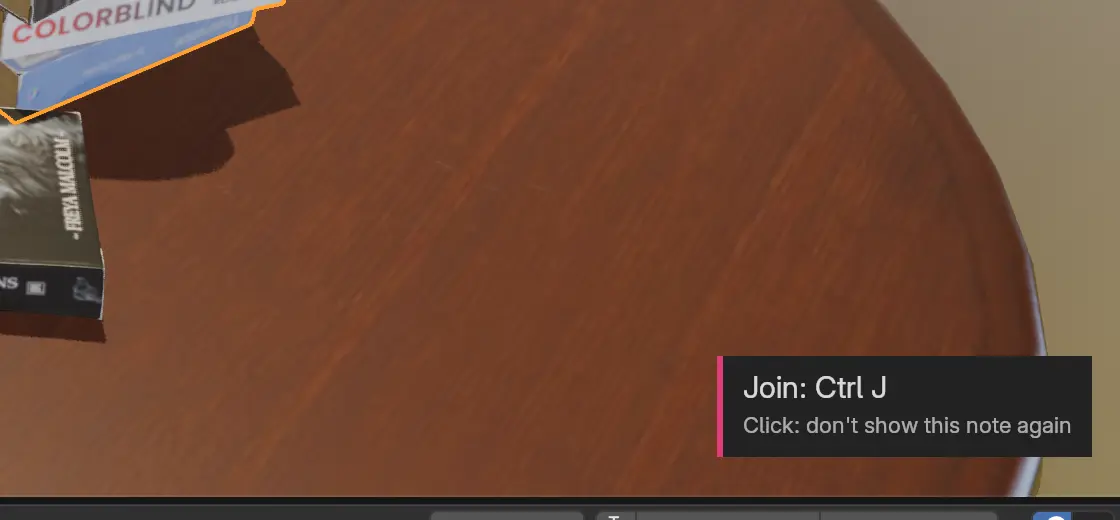
Press Ctrl Z and then Ctrl J yourself. No note shows: you already used the key.
What the note does
Section titled “What the note does”- It stays for 3 seconds. With the mouse on it, it stays until you move away.
- A click on the note hides it for good for that command. Show Hidden Notes Again in the panel brings hidden notes back.
- After you have used a command’s key three times, its note stops by itself. Learned After in the settings changes that number.
- For a command inside a menu that has a key, the note shows the whole way: Shift S > Cursor to Selected.
The panel
Section titled “The panel”Press N in the 3D Viewport to open the sidebar, then click the HotkeyPilot tab. It lists the keys you still have to learn, the commands you run that have no key, and your most used commands. The panel explains each part.